

On this page
- What it is
- Getting started
- The two modes
- Visit Tools & On Deck
- Importing bookings
- Working through the day
- Printable keepsakes
- Scheduled messages
- Reindeer feeds
- The Nice List
- The Nice-O-Meter
- The Santa Tracker
- The Reindeer Gallery
- The Christmas Fireside
- Messages
- Settings & privacy
- Subscription
- First-show checklist
- Troubleshooting
- Need help?
What North Pole Console is
North Pole Console is a performance companion for professional Santa performers. It has two faces:
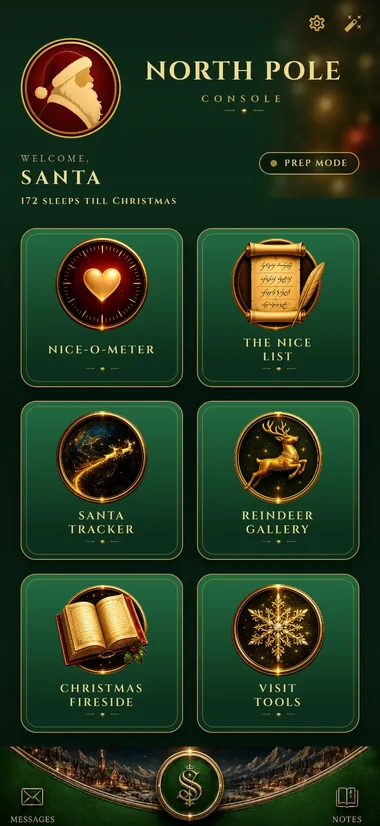
- Backstage (green) is yours alone. It is where you line up visits, write your notes, schedule little surprises, print keepsakes and get everything set.
- Show (red) is what the children see. It turns your phone into Santa's own magical instrument: the Nice List, the Nice-O-Meter, the sleigh tracker, the reindeer stables and a fireside full of stories.
Everything you enter stays on your own device. There are no accounts, and none of your visit details ever leave your phone.
Getting started
The first time you open the app, a short welcome tour introduces the two modes and what is inside. You can swipe through it or tap Skip at any time.
A couple of things worth doing straight away, in Backstage:
- Set Santa's portrait. Tap the round portrait at the top left of the dashboard, then choose Take Photo or Choose from Library. You can pan, zoom and flip the photo to frame it, then save. This portrait appears on your dashboard and doubles as your secret way back out of Show mode (more on that below).
- Set your name. Go to Settings (the cog, top right) and set the display name the app greets you with, for example Santa, Father Christmas or Santa Ted. This name also signs the Nice List certificates.
The two modes: Backstage and Show
This is the single most important thing to understand.
- Backstage Prep mode (green) is your private workspace. The settings cog and the wand sit at the top right.
- Show mode (red) is the child-facing performance. All your prep tools are hidden, and only the magical features remain.
To go live: tap the wand at the top right of the Backstage dashboard. A festive jingle plays and the console turns red.
To come back to Backstage: press and hold Santa's portrait for a full 2.5 seconds. This is deliberately a slow, firm hold, not a tap, so a child playing with the phone can never trip it and reveal the workings. The first few times you enter Show mode, the app briefly highlights the portrait to remind you of this.
Explore every tool in Backstage first. Several of the best features (scheduled messages, printable certificates and story sheets, and the reindeer feeds) are set up behind the scenes and only pay off once you have prepared them.
Backstage: preparing a visit
Visit Tools and the On Deck cue card
Visit Tools is your roster of families. Each child needs only a Name to get going. Tap MORE DETAILS to add any of:
- Says it like… for pronunciation, e.g. shan-TALL
- Age
- Wish: what they are hoping for
- Note: a praise line or achievement to mention ("has been helping with the new baby")
- Special requirements: anything that shapes how the visit should run, such as a quieter visit, no flashing lights, staying in a wheelchair, or a bereavement in the family
Special requirements appear last on the On Deck cue card, so they are the final thing you read before the door opens. Like everything else in the app, they stay on your device and are never uploaded.
When you tap a visit to make it active, its children appear on the On Deck cue card at the top of Visit Tools, so you can read everything you need in the few seconds before the door opens. The active visit is also what the Nice List reveals in Show mode.
Each child on the cue card has a Certificate button to print a keepsake (see Keepsakes below). The same button also appears on the Nice List's active-visit card in Backstage, so you can print from whichever screen you are on.
When a family is due
A visit can carry a time as well as a name. In QUICK ADD A VISIT, use the WHEN field; for a visit already in the queue, the same field is in EDIT VISIT.
- The time and date are chosen from wheels rather than typed, so there is no format to get wrong and nothing to mistype in a dim room.
- The year is there if you need it, and the app assumes the nearest sensible one if you do not set it.
- SORT BY TIME puts the queue into running order. When the queue spans more than one day it heads each day, so a two-day booking reads as two days.
- An imported booking list carries its times across. The app works out whether the list is day-first or month-first from the dates themselves, so there is no setting to find and nothing to tell it. Day-first is assumed if a list is too short or too ambiguous to tell.
Importing a day's bookings
If you are working a grotto or a full day of back-to-back visits, you do not have to type them in. Below the quick-add form, tap IMPORT FROM A FILE.
Export your bookings from whatever system you use as a CSV. Every booking system and spreadsheet can do this, usually under "Export" or "Save as". Put the column headings on the first row, then one row per child. Santa looks for:
- Child Name (the only one that is required)
- Age
- Booking Ref or Bookers Surname, used to group siblings
- Special Requirements
- Present Type: an age band or gift tier, if your elves prep against one
- Notes, Wish, Pronunciation
Headings do not have to match exactly. "First Name", "Child's Name" and "Name" are all understood, and anything Santa does not recognise is simply left out. Tap What should the file look like? in the app to see the same list at any time.
Children sharing a booking reference (or a booker's surname) are grouped into one visit, so a day of bookings arrives as a list of families rather than a long list of children. You can override this before confirming: choose One visit per family, One visit per row, or All in one visit.
You always see exactly what was found, and how each column was matched, before anything joins the queue.
The file is read and interpreted entirely on your own device. Nothing is uploaded, and the app has no access to your files beyond the single one you choose, each time you choose it.
Working through the day
Once you have three or more visits lined up, extra controls appear to help you work through them. With one or two visits they stay hidden, so a performer doing a single house call is not handed tools they do not need.
- MARK AS SEEN on any visit card ticks that family off. Tap again to PUT BACK IN QUEUE if you marked one by mistake.
- The ⋯ button on a card opens the rest: Move to front of queue for a family who arrives early, Mark as no show for one who does not turn up, Edit visit and Delete visit.
- CLEAR ALL empties the queue at the end of the day. It tells you exactly how many visits and children will go, and an UNDO appears straight afterwards in case you tapped it in error.
Clearing down at the end of each day is worth making a habit, particularly after importing a booking list, since that information belongs to the venue and the families rather than to you.
Printable keepsakes: certificates, story sheets and reindeer cards
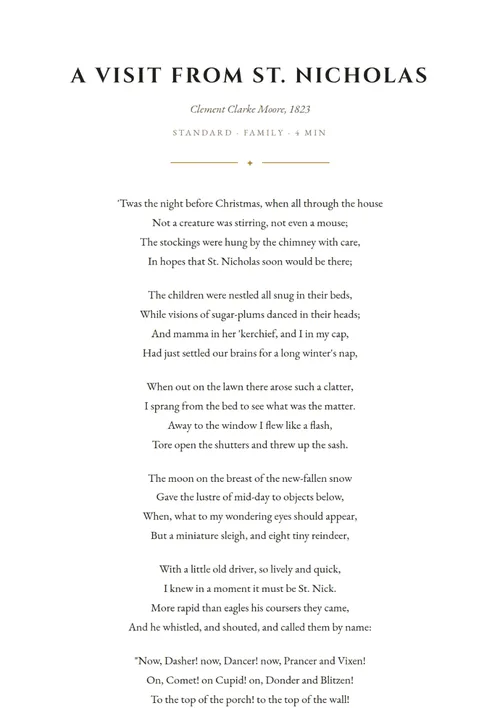
North Pole Console can print beautiful, ink-friendly keepsakes on plain white paper.
- Nice List certificates. From a child on the On Deck cue card (Visit Tools) or on the Nice List's active-visit card, tap Certificate. The app builds an official "Nice List Certificate" with the child's name in flowing script, their age and town, and your Santa signature, then opens the system share sheet so you can print it, save it to Files, or email it to the family.
- Story sheets. In the Backstage Christmas Fireside, open any reading and tap Print to produce a printable copy of that story or carol.
- Reindeer cards. Tap the printer icon at the top of the Reindeer Gallery for a sheet of nine cut-out cards. There is more on these under the Reindeer Gallery below.
The certificate and stories are laid out to fill a single page (A4 in the UK and Europe, US Letter in the Americas), sized automatically to your region.
Scheduled messages: a graceful way to wrap up
During a visit you can have believable messages "arrive" from the North Pole, for example a note from Bernard at the workshop that they have run low on candy canes and need Santa back. It is a gentle, hands-free way to bring a visit to a close without breaking character.
To set them up, open Messages in Backstage and tap Scheduled (the clock, top right). For each cue you can choose:
- Who it is from (any of your North Pole contacts)
- The message (pick a ready-made line or write your own)
- When it arrives: either a delay from the start of the show (5, 10, 15 minutes, and so on) or a specific clock time, both set with simple steppers, no keyboard needed
- On or off, so you can arm and disarm cues without deleting them
Nothing is ever scheduled by default. Cues only fire while you are in Show mode, and only once per visit. When one fires, a discreet banner appears, a soft chime plays, and the message lands in your inbox as a real incoming note you can tap to open.
Choosing the sound a message makes
At the foot of the SCHEDULED MESSAGES screen you can pick the Message tone: Chime (the original, and still the default), Sleigh bells, Workshop bell, Frost tap or Music box. Tap any one to hear it.
The choice affects only scheduled messages arriving in Show mode; nothing else in the app changes. If Show mode sounds is switched off in Settings, cues arrive silently. The picker tells you so, and you can still choose a sound ready for later.
Reindeer feeds and the Special Operative
Each of the nine reindeer has its own live "stable cam". Eight of the team show their empty stalls (the herd is out with the sleigh, wherever Santa is), each with its own detail so no two feeds look alike.
The ninth, the Special Operative (a Rudolph-style specialist), has two feeds you choose between in Backstage from his profile: resting in his stall, or out on delivery. Set whichever suits the story you are telling that night.
Show: performing
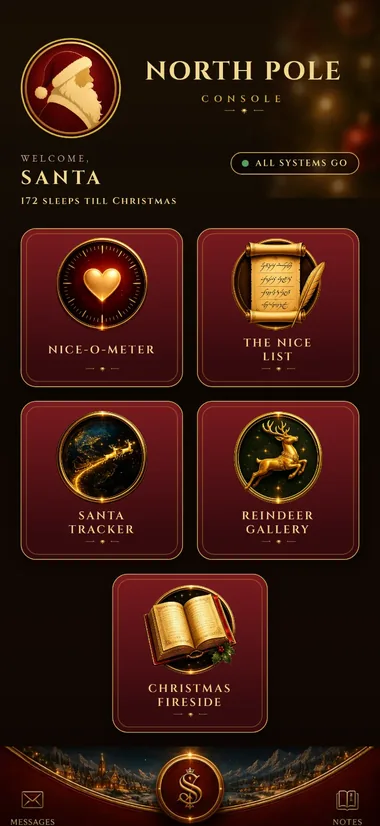
The Show dashboard presents the child-facing tools. Tap any tile to open it. Every screen has a golden snowflake at the top left to return to the dashboard, and you can also swipe right to go back.
The Nice List
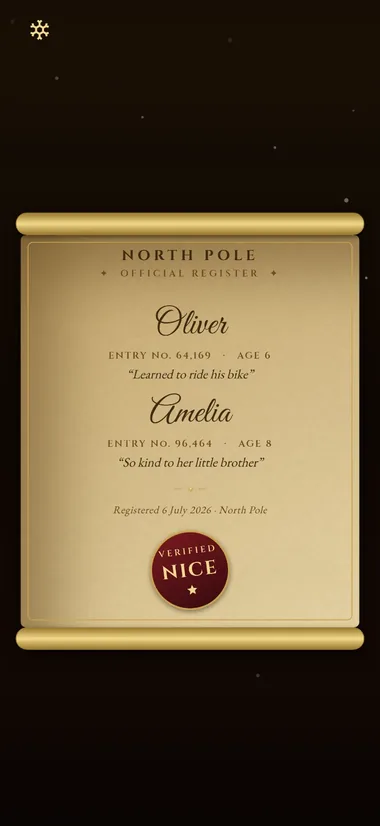
The Nice List is the centrepiece: an official register that reveals a child's name, checked and verified by Santa himself.
- A rolled, wax-sealed scroll arrives. The child taps the wax seal to break it, and the scroll unfurls.
- The console connects to the North Pole archives, searches, and the name inks itself onto the parchment with a VERIFIED NICE stamp.
- If you have an active visit set in Backstage, it reveals those children. Under How names appear in Backstage you can choose All together, One at a time, or No name needed. With no active visit, Santa can search a name live.
- No name needed is for grottos and events where you do not get names in advance. The scroll, the seal, the search and the VERIFIED NICE stamp all play out exactly as usual. Santa just never asks for a name, so you can run the ceremony for any child who walks up.
The Nice-O-Meter
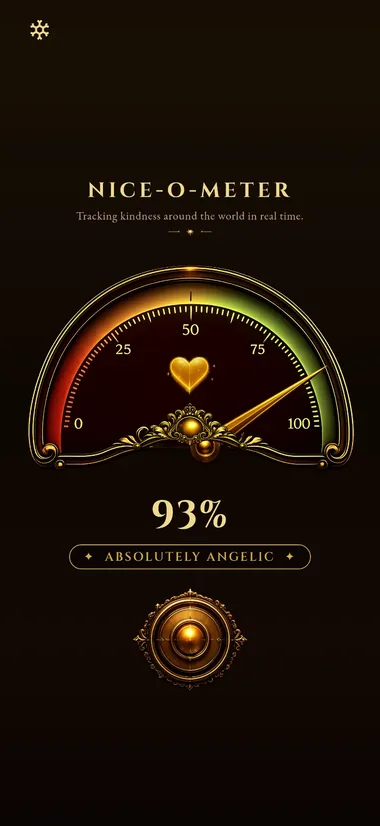
A theatrical "kindness scan". The child taps the medallion, a needle sweeps, and it lands on a warm verdict. A light-hearted ceremony that adds a moment of drama to a visit.
The cheeky verdict
A normal tap of the medallion always lands in the Nice zone. There is also a hidden tap area that sends the needle into the red instead, for the dad who asks to be scanned, or a child who is in on the joke.
It is invisible in Show mode. In Backstage, open the Nice-O-Meter and you will see four dashed boxes: one either side of the medallion, and one in each bottom corner. The live one is outlined in green; the others are faint.
- Tap a grey box to move the hidden area there.
- Tap the green one to try it, exactly as it will behave in Show.
- Press it before a scan, or at any point while the needle is sweeping, and that verdict comes back cheeky.
The default is to the left of the medallion, where it has always been. A bottom corner is worth choosing if you hold the phone out for someone else to press the medallion themselves. It puts the hidden area where their hand never goes and your thumb already is, so they cannot set it off by accident.
The ? at the top right of the screen repeats all of this in the app.
The Santa Tracker
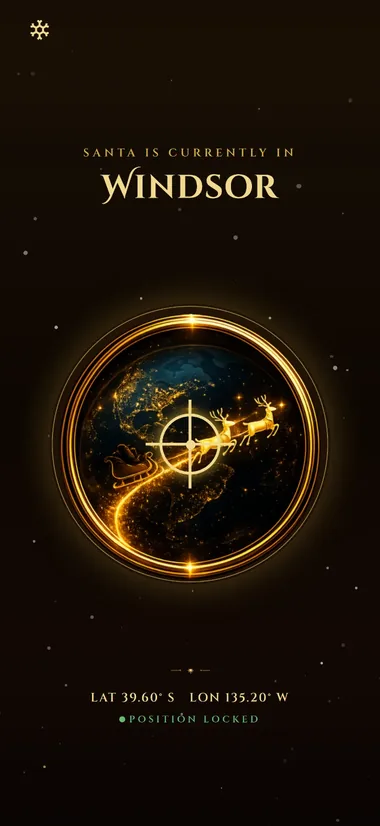
A radar that locks onto the child's town and shows the sleigh on its way. The town is worked out on your device (see Privacy) or set manually in Backstage.
The Reindeer Gallery
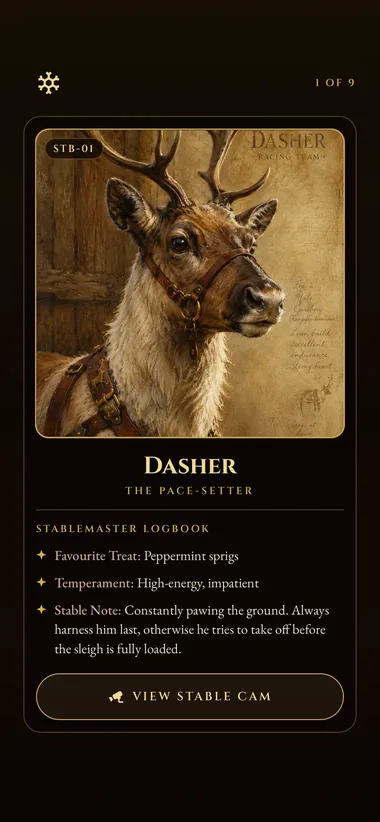
Meet the herd. Each reindeer has a profile with its role, favourite treat, temperament and a stable note, plus a live stable cam. A lovely way to answer "what are the reindeer doing right now?".
Making the herd your own
Every one of the nine can be rewritten in your own words. Tap a reindeer, then DETAILS, then the pencil.
- You can change the NAME, ROLE, FAVOURITE TREAT, TEMPERAMENT and STABLE NOTE. Leave a field blank and the app's own wording stays.
- A reindeer you have rewritten shows a small restore arrow in the editor's header, which puts that one back to the app's original wording. RESTORE ALL TO DEFAULT at the foot of the gallery does the whole herd at once.
- ADD A CHARACTER, at the foot of the gallery, makes one of your own, and you can have up to nine alongside the herd. Give it a photograph from your library or the camera.
- A character of your own can borrow a STABLE CAM from one of the nine, so there is footage to show when a child asks to see them.
- The eye icon in the editor hides a reindeer you never use. Hidden ones leave the gallery, the carousel and the printed cards. The gallery then shows a HIDDEN · SHOW THEM button to bring them all back, and anything you had rewritten is kept.
- Everything you write and every photograph you add stays on your own device.
The printer icon at the top of the gallery makes a sheet of nine cut-out cards, portraits and all, to hand round the room or leave as a keepsake. It prints the herd as it stands, so your own wording, your own characters and your own photographs are all on it, and anything hidden is left off.
The Christmas Fireside
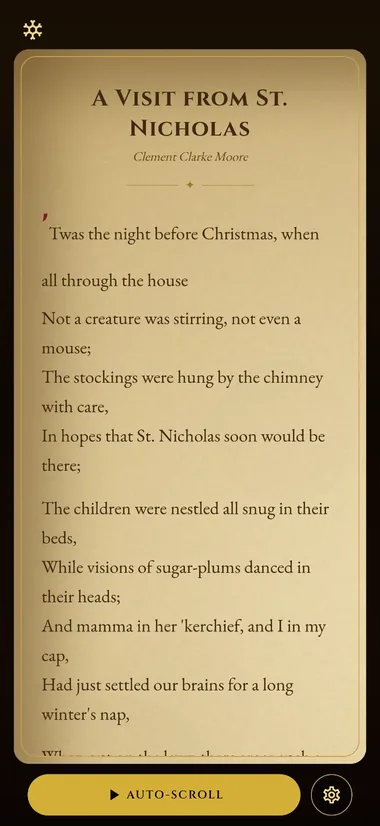
A candlelit reader for carols, poems and stories to read aloud.
- Open any reading to enter the teleprompter-style reader on aged parchment.
- Tap Auto-Scroll to have the text scroll itself at a comfortable pace; tap the page to pause. Choose slow, medium or fast in the reader's settings (the cog).
- Adjust text size in the same settings, in fine steps, for the light you are performing in. A high-contrast mode is available for dark grottos.
- The screen stays awake while the reader is open, so it never dims mid-recital.
In Backstage, the Fireside adds a tone filter and a sort control so you can find the right piece quickly, star your favourites so they sit at the top in Show mode, and Print any story as a keepsake.
Adding your own stories
You are not limited to the readings that come with the app. In Backstage, tap ADD YOUR OWN STORY (under the Mood and Sort rows, above the library) and paste in any story, poem or carol you like.
- Give it a Title. The Author field shows your own display name as a faint placeholder. Leave it and the piece is credited to you, or type a name if someone else wrote it.
- Choose Story, Poem or Carol. The choice matters: a carol is timed as sung rather than read, and each is laid out differently on the printed sheet.
- What you save appears under My Stories, above the app's own library in both Backstage and Show mode.
- Your own pieces behave exactly like the built-in ones: the same reader, the same gentle auto-scroll, the same star for Quick-Picks, and the same printable sheet.
- To change one, tap the pencil, either on its card in Backstage or in the header while you are reading it. To remove one, use the bin in the top corner of the editor.
- Anything you add stays on your own device. It is never uploaded, and we cannot see it.
You can keep up to 20 of your own pieces, each up to about 5,600 words, or roughly 45 minutes read aloud. For scale, the longest reading that comes with the app is around 4,300 words.
Text copied out of a PDF carries line breaks from wherever the page happened to end, rather than where the writer meant one. The app joins those back together for you and tells you how many it mended. It is a careful guess rather than a certainty, so read the piece through afterwards and mend anything that still breaks in an odd place. The box stays editable.
Messages
An in-character inbox of North Pole contacts. It is a believable prop on its own, and it is where your scheduled messages arrive during a visit.
Settings, privacy and more
Settings and privacy
Open Settings from the cog at the top right of the Backstage dashboard.
- Sound. Show-mode sounds (the ceremony cues and the showtime jingle) and Prep-mode sounds (the taps and the app-open shimmer) can be turned on or off independently.
- Haptics. Turn the app's vibration feedback on or off app-wide.
- Reduce Motion. The app respects your device's system Reduce Motion setting, calming the ambient animations while keeping the meaningful cues.
- Startup mode. Choose whether the app opens to Backstage, to Show, or to wherever you left it.
- Find my town. Optionally let the Tracker resolve your town automatically.
- Usage statistics. Anonymous, aggregate counts of which features and stories are used, to help improve the app. On by default, off with a single tap. Never includes your visits, names, notes, photographs, the stories or reindeer you write, or your location.
Below the preferences you will also find Manage subscription and Restore purchases, Privacy & Terms, a link to this user guide, Replay the welcome tour, Rate this app, and Follow on Facebook for news of what is being worked on.
Premium supporter
Once you have bought the app (a trial does not count), Settings gains a Premium supporter section: a line of thanks and two buttons.
- Send feedback opens your own mail app, addressed to us, with the app version and your platform filled in and nothing else. You see the whole message before it goes, and you can change any part of it.
- Share with a fellow Santa opens your own share sheet with a short message and a link to the website.
Neither button sends anything by itself. Separately, the app will invite you to use them at most twice, ever: once to ask what you would change, and a month or so later, once about passing it on. Both invitations appear only in Backstage, both can be dismissed, and neither comes back after the second.
Your privacy
Everything you enter (your name and portrait, visits, names, notes, messages, the stories you add and the reindeer you write, and your settings) is stored only on your device. There are no accounts, and none of it is sent to us or anyone else. The app asks for the camera or photo library only when you choose a picture, for your Santa portrait or a reindeer. It asks for your location only if you turn on the Tracker's "find my town", and then turns it into a town name on the device and immediately discards the coordinates.
Full details are in the in-app Privacy Policy and Terms, and on our website: Privacy Policy and Terms of Use.
Subscription
North Pole Console is offered as an annual subscription with a free trial, and a one-off lifetime option. Your subscription is billed and managed by the App Store or Google Play, depending on where you downloaded the app; you can manage or cancel it any time in your device's account settings.
The app is available now for iPhone and Android: download North Pole Console on the App Store or on Google Play.
Before your first show: a quick checklist
- Set Santa's portrait and your display name.
- Add your families in Visit Tools. Type them in, or import a day's bookings from a spreadsheet.
- Tap a visit to make it active so the Nice List reveals the right children, and choose all together or one at a time.
- If you will not have names on the day, set How names appear to No name needed.
- Check the Nice List, Nice-O-Meter and Tracker are set up the way you want.
- If you want a graceful exit, arm a scheduled message or two.
- Set the Special Operative's feed to suit tonight's story.
- Star your go-to Fireside readings so they are first in Show mode.
- Print any certificates you want to hand over.
- Practise the hold-to-return gesture (hold the portrait 2.5s) so it is second nature.
- Switch to Show, and enjoy.
And at the end of the day, tap CLEAR ALL to empty the queue.
Tips and troubleshooting
I switched to Show and cannot get back.
Press and hold Santa's portrait for a full 2.5 seconds. It is a firm, deliberate hold, not a tap.
The Nice List shows the wrong child, or none.
Set the correct visit as active in Visit Tools (Backstage). With no active visit, Santa searches a name live instead.
A certificate or story did not print.
The app opens your device's share sheet; from there choose Print or Save to Files. You will need a printer set up on your device, or you can save the PDF and print it later.
My spreadsheet would not import.
Santa needs a column he can read as the child's name. Make sure your first row is column headings, that one of them is something like Child Name, and that the file is saved as a CSV rather than a native spreadsheet file. The app lists the columns it found so you can see what it read.
Siblings came in as separate visits.
Grouping needs a shared Booking Ref or Bookers Surname column. Without one, every row becomes its own visit, but you can still change this to One visit per family in the preview before confirming.
The Tracker cannot find my town.
Turn on Find my town in Settings and allow location when asked, or set the town manually in the Tracker's Backstage setup.
Everything is silent.
Check the per-mode sound toggles in Settings, and your device's own mute switch.
Need help?
We are glad to help. Contact us at support@northpoleconsole.com.
Merry Christmas, and enjoy the magic.